

If you searched for how to clean a laptop screen, the safest method is simpler than many homemade cleaning recipes. Start with a clean microfiber cloth, use little or no liquid, and never spray the display directly. Before using alcohol or another cleaner, check what your laptop manufacturer permits. You may also want to read Laptop Stand.
| Cleaning question | Safe starting point |
|---|---|
| Best cloth | Clean, soft microfiber or lint-free cloth |
| First cleaning step | Remove loose dust with a dry cloth |
| Liquid for light marks | A small amount of water on the cloth |
| Direct spraying | Avoid it |
| Alcohol | Use only when your model’s guidance permits it |
| Final step | Let the display dry before turning the laptop on |
Quick answer: Shut down and unplug the laptop. Remove loose dust with a clean microfiber cloth. For fingerprints, lightly dampen the cloth with water unless your manufacturer permits another cleaner. Wipe gently, keep moisture away from the edges, and let the panel dry before switching the computer back on.
What You’ll Need
You don’t need a large cleaning kit for routine care. Gather these items before you start:
- A clean microfiber or soft lint-free cloth
- A second dry microfiber cloth
- A small amount of clean water
- A manufacturer-approved display cleaner, if your model requires one
- Your laptop’s support page or user manual for coating-specific instructions
A microfiber cloth matters because rough paper products can mark delicate display surfaces. ASUS specifically warns against toilet paper, kitchen paper, and rough towels on LCD and OLED panels. HP also recommends soft microfiber instead of household rags or paper products.
The safest general approach is to start dry, then add minimal moisture only when needed. Apple recommends water on a soft lint-free cloth for routine MacBook display cleaning.
How to Clean a Laptop Screen Safely in 7 Steps
- Shut down and unplug the laptop. Disconnect the charger and attached accessories. A dark display also makes fingerprints, dust, and dried spots easier to see. Apple and ASUS both tell users to power down before cleaning the display.
- Check your manufacturer’s cleaning instructions. This step matters because display coatings differ. Apple, Microsoft, ASUS, and Dell do not give identical chemical-cleaning advice for every product.
- Remove loose dust while the surface is dry. Fold a clean microfiber cloth and wipe gently. Avoid pushing visible grit across the panel. Use a fresh section of cloth if the first area becomes dirty.
- Lightly dampen the cloth if marks remain. Put water or an approved cleaner on the cloth, not the computer. The fabric should feel slightly damp rather than wet. Manufacturers repeatedly warn against spraying liquid onto the display because moisture can enter around its edges.
- Wipe with light pressure. Work across the surface slowly without pressing into the panel. You shouldn’t need to scrub fingerprints. Microsoft notes that Surface displays are designed so oily marks can be removed without hard rubbing.
- Treat stubborn marks according to the model’s instructions. Don’t assume one homemade solution suits every computer. Apple permits the use of 70% isopropyl alcohol for hard-to-remove marks on certain Mac displays. ASUS laptop guidance allows 70%-75% IPA, while separate ASUS monitor guidance warns against using alcohol on certain LCD and OLED coatings.
- Dry the display before using the computer. Pass a clean, dry cloth across any remaining streaks. Wait until no moisture remains before closing the lid or restoring power. ASUS specifically recommends complete drying after cleaning.
What Not to Use on a Display
Several common household products create unnecessary risk.
| Item or method | Why to avoid it |
|---|---|
| Paper towels or tissues | Fibers can be too rough for coated panels |
| Household glass cleaner | Ingredients may not suit display coatings |
| Cleaner sprayed directly on the panel | Liquid can reach openings and edges |
| A soaking-wet cloth | Excess moisture can run into the device |
| Hard scrubbing | Pressure may mark or damage the panel |
| Random homemade chemical mixtures | Compatibility varies by manufacturer |
Apple says not to use household window cleaners, ammonia, abrasives, or cleaners containing hydrogen peroxide on its displays. Microsoft also says not to use glass cleaner on Surface screens.
Don’t automatically reach for vinegar, rubbing alcohol, or disinfectant wipes because another website recommends them. The correct choice depends on the surface and the manufacturer’s published care instructions.
Does the Display Type Change the Cleaning Method?
Yes. The material covering the panel, as well as any anti-glare or specialty coatings, can affect which cleaners are suitable.
- Standard coated displays: Start with a dry microfiber cloth. If necessary, use a cloth slightly dampened with water. Avoid stronger products unless the manufacturer lists them as safe.
- Touchscreen devices: Fingerprints are common, but extra pressure isn’t needed. Microsoft permits a lint-free cloth with water or an IPA solution of 70% or less on supported Surface products.
- Nano-texture Apple displays: These need special care. Apple recommends using the polishing cloth supplied with the product. For infrequent hard-to-remove marks, Apple permits 70% IPA on that cloth.
If you don’t know which coating your computer uses, check its model support page before applying anything stronger than water.
How to Remove Streaks and Fingerprints
Streaks often mean too much liquid or residue remains on the surface. Use a fresh, dry microfiber cloth and make gentle passes across the panel. Don’t add more cleaner immediately. First, give the existing moisture time to dry. ASUS recommends wiping the panel from the top to the bottom with a dry cloth when marks or streaking remain.
For an oily fingerprint that survives water, check the manufacturer’s recommendations before moving to another cleaner. This extra check takes less time than dealing with a damaged coating.
Keep the Display Cleaner Between Wipes
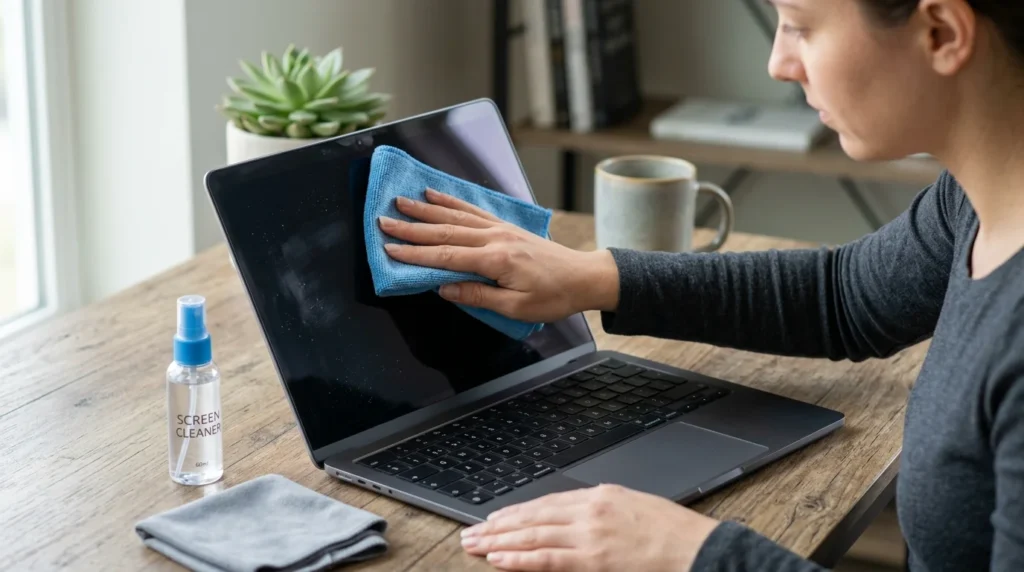
A few habits reduce how often you’ll need a damp cleaning:
- Avoid touching a non-touch display with your fingers.
- Keep food and drinks away from the computer.
- Close or cover the device when you’re not using it.
- Wash your hands before using a touchscreen.
- Keep one clean microfiber cloth reserved for electronics.
Microsoft recommends keeping Surface devices covered when they’re being carried or not used. Routine dry wiping also prevents marks from building into harder-to-remove residue.
A Safer Rule to Remember
Start with the least aggressive method: dry microfiber first, then a little water, and model-approved cleaner only when needed. That approach avoids guessing about coatings while still handling everyday dust, fingerprints, and smudges.
For more practical technology content, browse NewsDean’s Tech section. Mac users can also read NewsDean’s guide to converting YouTube videos to MP3 on Mac. For another troubleshooting walkthrough, see the guide to This Person Is Unavailable on Messenger.
Frequently Asked Questions
Sometimes, but don’t treat alcohol as a universal cleaner. Apple permits 70% IPA for certain hard-to-remove marks. ASUS permits 70%-75% IPA in its laptop guidance, yet warns against alcohol on certain monitor panels. Check your exact model first.
Avoid household glass cleaner unless your manufacturer expressly approves it for that surface. Apple and Microsoft both advise against window or glass cleaners for the displays covered by their support instructions.
Yes, for many devices, but put a small amount on a lint-free cloth rather than the panel. Apple recommends water for routine MacBook display cleaning. ASUS also says water can be used when other approved solutions are unavailable.
Use as little moisture as possible, then finish with a fresh dry microfiber cloth. Don’t spray cleaner onto the display. If streaks remain, check whether your model permits a stronger cleaning solution before trying one.

